First Time Using the Binance App? Learn Your Way Around
App downloaded, logged in — and the screen is a wall of numbers, red and green curves, and buttons you don't understand. Almost everyone's a little dazed the first time, half-afraid of tapping the wrong thing. Relax — this piece will get you familiar with the interface. The truth is you only really use a handful of places; once you know what each is for, everything else feels steadier.
01Start at the bottom: the main entries
Learning your way around starts at the bottom. The row of tabs along the bottom of the Binance app is the app's skeleton — usually including Home, Markets, Trade and Assets, plus a "More / Services" type entry. Ninety percent of what you do later happens by switching among these tabs.
Exactly what each tab is called and what its icon looks like varies across app versions, and the labels may shift slightly too. But the division of labor by function is basically fixed — I'll go through them one by one below. Learn the functions first and you'll find a button even after it's moved.
When you can't find a feature, don't dig through menus level by level — use the search box at the top of the app to search the feature name directly (say "P2P," "Deposit," "Spot") and it usually jumps straight there. Much simpler.
02Home: your overview deck
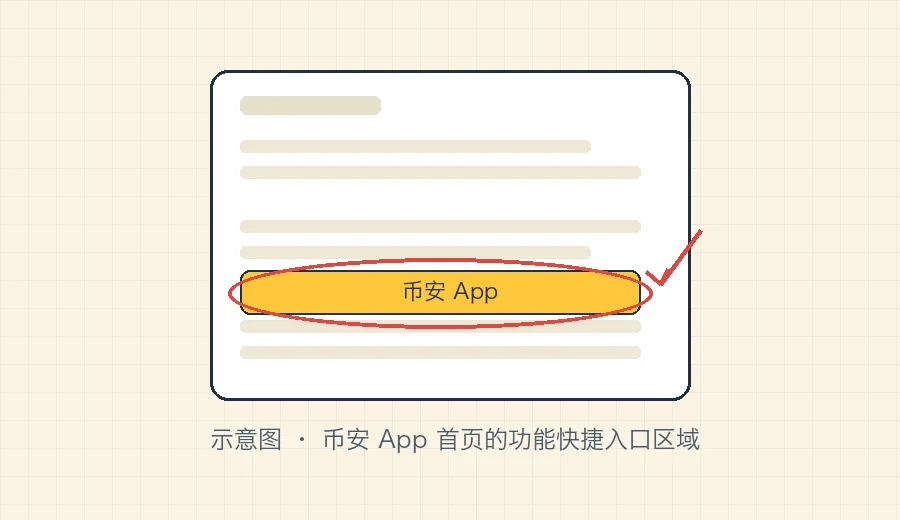
Home is the first screen you see when you open the app — essentially an overview deck. Here you'll generally find: an entry to your account at a glance, shortcut icons for various functions (Deposit, Withdraw, P2P, etc.), and some market and news modules.
For beginners, the most useful part of Home is that row of function shortcuts — many actions don't need a second-level menu; you tap straight in from the Home icons. The first time, you can slowly scan Home, learn what icons there are, and get a rough sense of where things live.
Here's a beginner-friendly tip: don't let those colorful promo banners and recommendation slots on Home pull you off course. Most of that is marketing content with little to do with your main line of "open account, deposit, buy first coin." Keep your eyes on a few core function icons (Deposit, P2P, Trade, Assets) and that's enough; leave the rest until you're comfortable. Clicking everything from the start only makes you dizzier.
03Markets: where to see prices
The "Markets" tab is where you see prices. It lists the current price, percentage change and candlestick chart for various coins. Starting out, you'll mainly use this page to: check what Bitcoin, Ethereum and other major coins cost right now, and whether they've been up or down lately.
All those colorful candlesticks and technical indicators — when you're just starting, you can ignore them entirely. For now you only need to know: to check what a coin costs right now, come to Markets and search its name or ticker (like BTC, ETH).
The Markets page is only for "looking" — seeing a price doesn't mean you have to buy right away. The most common beginner mistake is seeing it go up and chasing on impulse, or seeing it drop and panicking. Price swings are the norm; looking is one thing, whether and how much to buy is another — think that part through before you act, see how much to buy first.
04Trade: where buying and selling happens
The "Trade" tab is where you actually place orders to buy and sell. As a beginner, you only need to home in on the "Spot / Convert" type of basic trading — using the money in your account (say USDT) to buy a coin, or selling a coin back into money. This is the most direct, most beginner-friendly way to trade.
On the Trade page you may also see entries like "Futures," "Margin," "Options." Here's a clear word: beginners, stay away from futures and leverage. Those are advanced plays that amplify risk, lose money far faster than spot, and don't fit your need to "just buy a coin and try it out." At the beginner stage, homing in on the single "Spot" entry is plenty; treat the rest as if they don't exist. For why I tell you to avoid them, I've written a dedicated piece — what futures and leverage are, and why beginners should stay away.
Seeing wording in the "Futures" screen about tens or even hundreds of times leverage — don't get curious and try it. That multiplier amplifies risk by the same factor; a small adverse price move can wipe out your principal fast. This isn't scare talk — it's the fastest way beginners lose money in this space. What you need to do right now is learn the layout and buy your first coin; the further away futures stay, the better.
05Assets: where your money is and how much
The "Assets / Wallet" tab is, as the name says, where you see how much money you have and what it consists of. Your account balance, each coin, valuations — all here. After buying or selling a coin, come here to check the result is right.
The Assets page also usually hides the entries for Deposit and Withdraw — moving money in, moving coins out, both go through here. Your first deposit and your later withdrawals all come back to this page. As a beginner, build a habit: after every action, come back to the Assets page and glance at whether the numbers are right and the coin is the one you bought. That one glance helps you catch a wrong buy or wrong transfer in time — better than only noticing after the fact. For how withdrawals actually work and which chain to pick, see complete withdrawal guide.
06P2P / Deposit: the fiat in-and-out gate
Last, one thing every beginner will definitely use: P2P (fiat trading). Put simply, it's where you use a fiat currency to buy USDT and other digital currencies (and, in reverse, sell them back into fiat) — effectively the import/export gate between fiat and crypto.
Your first money will most likely come in through P2P or a similar fiat channel: use local currency to buy USDT, then use that USDT on the Trade page to buy the coin you want. In other words, USDT here plays the role of a "transit station" — fiat is first converted into a stablecoin like USDT, then used to buy other coins, a clear flow that's also easy to reconcile. For what USDT actually is and why it serves as the transit, see what is USDT. The P2P entry is usually among the Home shortcut icons, or can be found on Trade- or Assets-related pages.
P2P is peer-to-peer trading with other users. Although the platform has an escrow mechanism, beginners need to know how to avoid certain traps (like receiving USDT of dubious origin, or having a linked bank account caught up and frozen). Before using P2P for the first time, I strongly recommend reading is P2P safe to go through the key points for avoiding pitfalls.
That's about all there is to learning your way around. As you can see, the spots you use regularly are really just these five, each minding its own area. Exact button positions and names may differ slightly per version — follow what's actually shown in your app and the illustrated guides in the Binance official help center. With this map in your head, you can get hands-on next — not registered yet? go back to the sign-up guide and get your account ready; want to dive straight into buying your first coin? see the complete first-time buying guide.
FAQFrequently asked questions
Does the app layout change? What if it doesn't match the guide?
Yes — the app adjusts its layout across versions, and button positions and labels may differ slightly from any one guide's screenshots. But the underlying logic — Markets for prices, Trade for buying and selling, Assets for your money, P2P for fiat exchange — stays much the same. Learn what each function does and you'll find it even if a button has moved.
First time in the app — which entry should I start from?
Go to the Assets page first to confirm your account status, then to P2P or a fiat entry to complete your first deposit, and only then to the Trade page to buy. Don't jump straight into complex features like futures and leverage — those have little to do with beginners.
What if I can't find a feature?
Use the search box at the top of the app to search the feature name directly — faster than digging through menus level by level. Search keywords like "P2P," "Deposit," "Withdraw," "Spot" and it usually jumps straight to the right page.